> For the complete documentation index, see [llms.txt](https://docs.lidiacommerce.com/llms.txt). Markdown versions of documentation pages are available by appending `.md` to page URLs; this page is available as [Markdown](https://docs.lidiacommerce.com/components/lidia-merchant-console/merchant-console-user-guide/product-management/pool-list.md).
# Pool List
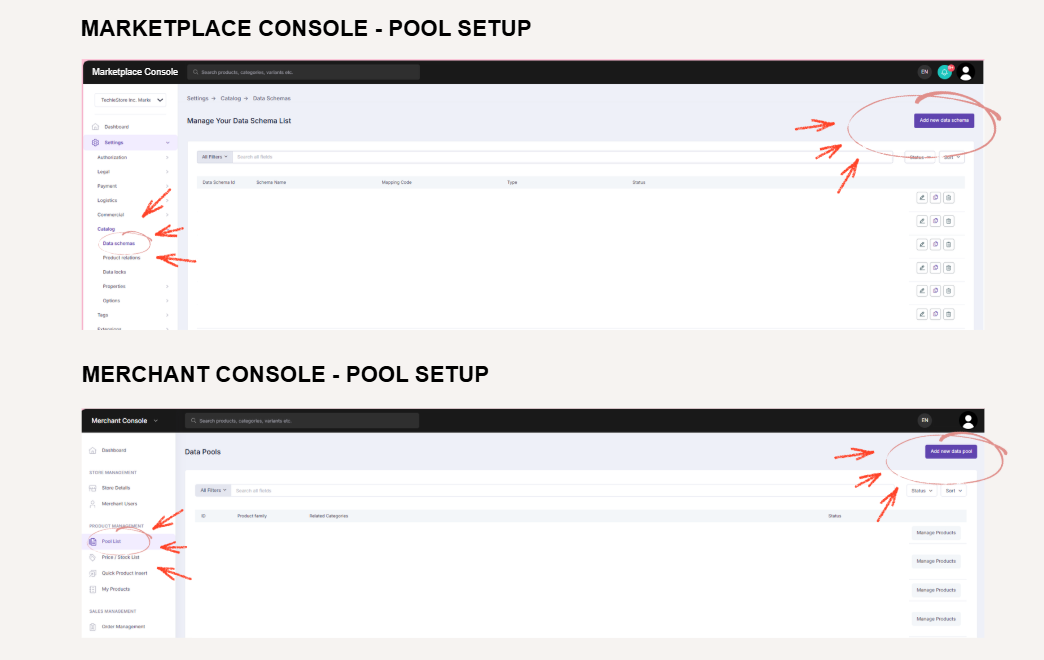
In Lidia, product upload processes operate based on the Product Pool concept. Pools are structures created to ensure that sellers upload their products in compliance with the data structure and standards defined on the platform. Pools can be created from both the Marketplace Console and the Merchant Console.
Sellers can perform product upload operations through the Merchant Console using the following methods:
* **Bulk upload via Excel files**
* **Data transfer via SAP integration**
The Pool List page is the main workspace where product family creation, schema download, product upload, data validation, and approval/publishing processes are managed end to end.
***
#### 1) Creating a Product Family
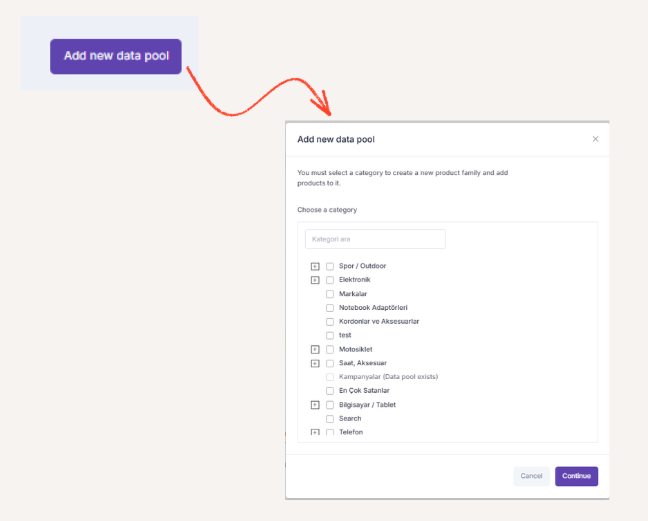
When you enter the Pool List page, the process is initiated using the Add New Product Family button located in the top-right corner of the screen. Creating a product family is the mandatory first step to ensure products are uploaded with the correct schema.
Steps:
1. Click the Add New Product Family button.
2. Select a category to create a product family.
3. The category schema configured in the Marketplace Console is displayed.
4. By selecting from the defined categories and subcategories in the system, you create your product family.
This structure is designed based on a **single catalog** approach. A product family contains category-specific options and properties, as well as the mandatory / optional status of these fields. This approach eliminates the need to redefine the same fields for each product upload, allowing products to be added to a predefined standard structure, accelerating the process and reducing manual repetition.
#### 2) Product Family List and the “Manage Products” Area
All created product families are listed under the Product Families section on the Pool List page. The following information is displayed for each product family:
* ID
* Product family name
* Related category(ies)
* Product family status
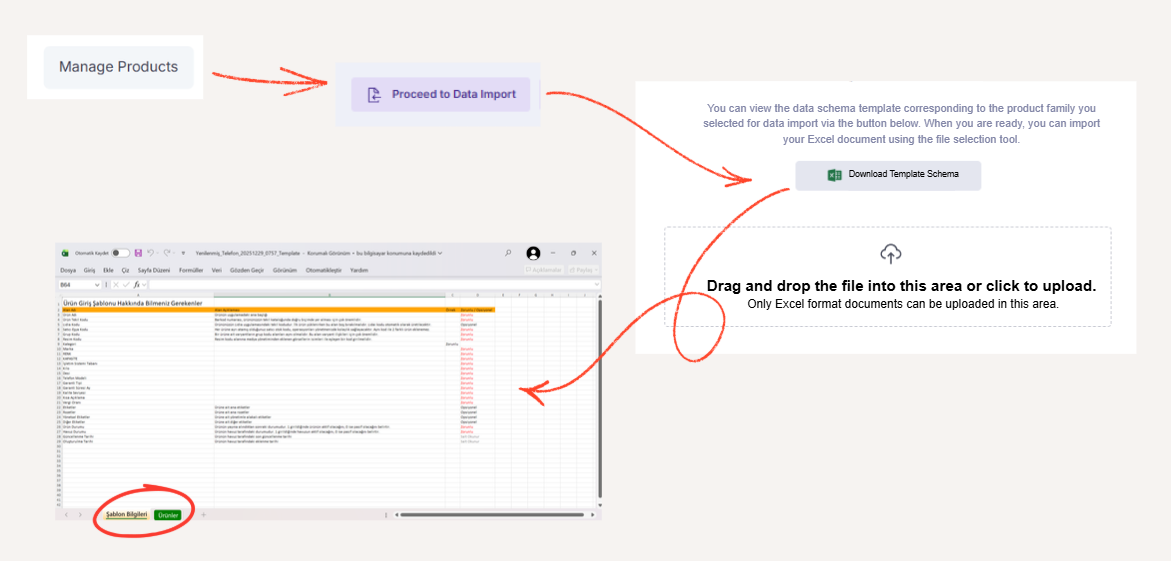
The Manage Products button next to each product family is the primary area where product upload and data management actions are performed.
#### 3) Downloading the Data Schema (Excel Template)
After clicking the Manage Products button, the product upload process is initiated using the Import Data button located in the top-right section of the screen.
At this step:
1. The **Excel data schema** appropriate for the selected product family is downloaded.
2. The Excel template provided for each product family is different.
These differences arise from category-specific attribute and option fields, as well as the mandatory / optional definitions of these fields.
{% hint style="info" %}
The fields defined for each product family and their mandatory statuses are configured by the Marketplace Console admin via\
**Marketplace Console →** [**Settings**](/components/lidia-console/lidia-console-user-guide/settings.md) **→ Catalog → Product Families**.\
Sellers using the Merchant Console do not have permission to modify these fields.
{% endhint %}
#### 4) Excel Template Structure and Data Entry
The downloaded Excel file consists of two main sheets:
* **Template Information**\
This sheet contains descriptions of the fields that must be completed for the relevant product family, including the purpose of each field, whether it is mandatory or optional, and example values.
* **Products**\
This is the main sheet where product data is entered and includes the following main sections:
* Basic Information
* Category Information
* Brand Information
* Options
* Properties
* Other Information
Using this sheet, bulk product upload can be performed by entering data for multiple products.
#### 5) Excel Upload and Onboarding Steps
After completing the Excel template, the file is uploaded to the system using the file selection tool. The upload process consists of the following onboarding steps:
**Upload Excel Document -> Validate Data -> Completed**
Once these steps are successfully completed, the product upload process is finalized.
#### 6) Pool Statuses and Product Flow
Uploaded products are managed under specific statuses before going live. The following tabs are displayed on the Pool List screen, each showing the number of products under the relevant status:
The process flows as follows:
* [x] **All**\
All products entered via Excel are initially listed in this tab in a table format.
* [x] **Not Submitted for Approval**\
Products that have not yet been submitted to the Marketplace admin are listed here. Selected products can be sent to the approval process using the Submit Selected Products for Approval button.
* [x] **Pending Approval**\
Products submitted to the Marketplace admin for go-live approval are listed in this tab. The Marketplace admin views these products via\
**Marketplace Console →** [**Product Management** ](/components/lidia-console/lidia-console-user-guide/product-management.md)**→ Pools**.
* [x] **Approved / Rejected**\
The Marketplace admin:
- Uses the Approve action to move products to the Approved tab in both the Merchant Console and Marketplace Console.
- Uses the Reject action to move products to the Rejected tab in both consoles.
* [x] **Published**\
Approved products are published by the Marketplace Console admin. Once published, these products are listed under the Published tab in both the Merchant Console and Marketplace Console.
#### 7) Exporting Data
Throughout the entire process, products listed in pools can be exported in Excel format using the Export Data button when needed. This feature can be used for reporting, validation, and archiving purposes.